Find a Branch

Secure Sign-In Guide: How to Access NexTier Bank Online Banking

This is a help guide for NexTier Bank online-banking customers — not a sign-in form. Use the Sign In link in the top navigation to reach the actual authentication page. The five steps below walk through a secure session from browser launch to dashboard, plus troubleshooting for forgotten passwords, lockouts, MFA device changes and biometric setup.

For fraud context see the CFPB fraud-prevention resources. Report lost or stolen cards 24/7 at 1-800-262-8215.

Platform Profile: What You Need Before You Sign In

Pre-requisites for a clean online banking session.

Signing in to NexTier Bank online banking requires three things: an enrolled online-banking profile (User ID and password created during the initial enrollment flow), an active multi-factor authentication method on file (phone number for SMS/voice, email address, or authenticator app token), and a current browser or the NexTier Bank mobile app. The browser must support TLS 1.3 — in practice any supported version of Chrome, Safari, Edge or Firefox released in the last two years is fine.

First-time users enroll from the sign-in page by selecting Enroll Now, then providing an account number, the last four digits of the primary accountholder’s Social Security number, date of birth and a contact method for MFA delivery. Enrollment completes in under five minutes in most cases; a second branch visit is never required for standard personal accounts.

Security posture improvements that customers can take independently: use a password unique to this bank (do not reuse a credential that has appeared in any breach), enroll MFA with an authenticator app rather than SMS where practical, enable real-time account alerts, and turn on biometric sign-in inside the mobile app so ordinary sign-ins do not require retyping a password on every session.

Five-Step Secure Sign-In Procedure

The full HowTo sequence, matched to the HowTo JSON-LD above.

  1. Step 1 — Open nextier.at in a supported browser

    Open the site in a current version of Chrome, Safari, Edge or Firefox. Confirm the browser’s padlock icon and the https:// prefix in the address bar. Avoid signing in from links embedded in emails — type the address manually or use a bookmark.

  2. Step 2 — Click the Secure Sign-In link in the header

    Select the Sign In link in the top navigation. The form loads on a dedicated authentication subdomain protected by TLS 1.3. Look for the extended-validation or standard SSL indicator before typing credentials.

  3. Step 3 — Enter User ID and password

    Type your online-banking User ID and password. Do not paste credentials from unsecured sources such as notes apps or screenshots. The password field masks input by default — click the eye icon only if the environment around you is private.

  4. Step 4 — Approve multi-factor authentication

    Approve the MFA prompt delivered by SMS, voice call, email or authenticator app. First-time devices may require a one-time registration code. The prompt is also required on sensitive actions like wires and external-transfer setup.

  5. Step 5 — Land on your dashboard

    On successful MFA the dashboard loads with account balances, recent transactions, and quick actions for transfers, bill pay, mobile deposit and secure messages. Sign out manually when finished or let the 15-minute idle timeout handle it.

Troubleshooting Common Sign-In Issues

Six frequent issues with self-service paths and phone backups.

IssueResolutionPhone Option
Forgot passwordSign-in → Forgot Password → MFA → new password1-800-262-8215 weekdays 8-6 ET
Account locked after 5 failed attemptsPassword reset flow with identity verification1-800-262-8215 for officer unlock
MFA device lostBranch visit with photo ID, or out-of-band phone verification1-800-262-8215 or any of 17 branches
Browser not supportedUpdate to current Chrome, Safari, Edge or FirefoxKnowledge base browser article
Biometric sign-in failingSettings → Security → Re-enroll biometricMobile support 1-800-262-8215
First-time enrollmentSign-in page → Enroll Now with account number and SSN last 41-800-262-8215 for guided enrollment

Security Best Practices

Customer-side habits that reduce sign-in risk.

Unique, Strong Password

Use a password unique to this bank — never a credential that has been used on another site or appeared in a breach. Length matters more than complexity: a 14-character passphrase is stronger than an 8-character symbol-heavy string. A password manager simplifies this. The bank’s policy enforces a minimum of 10 characters with mixed case, numbers and symbols.
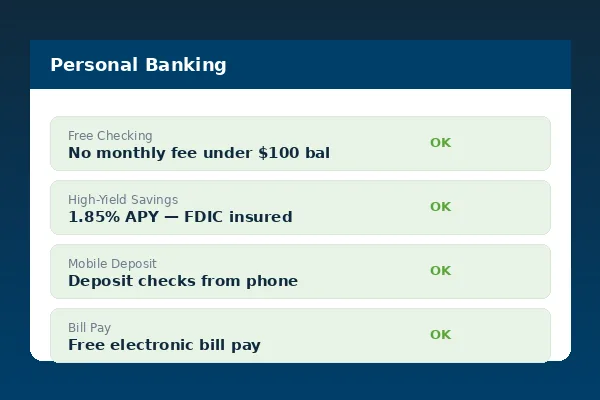
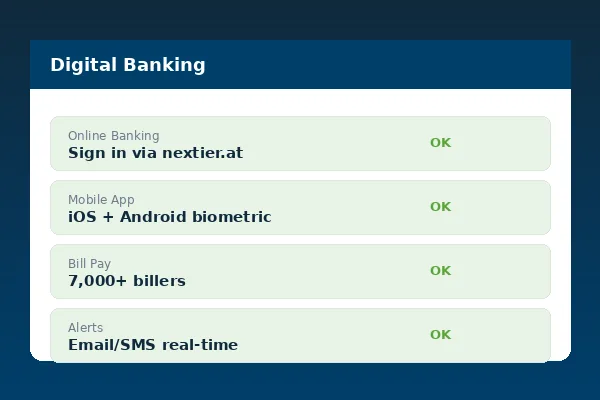
Secure password creation with password manager and MFA authenticator for NexTier Bank online banking
Authenticator app MFA token rotating codes paired with NexTier Bank online banking session

Prefer Authenticator App MFA

Authenticator apps generate time-based codes on the device and are resistant to SIM-swap attacks that can compromise SMS delivery. Google Authenticator, Microsoft Authenticator, Authy and 1Password all work with the bank’s MFA system. SMS-based MFA remains supported and is still far stronger than password-only sign-in.

Frequently Asked Questions

What do I do if I forgot my password?
Sign-in page → Forgot Password → MFA identity confirmation → set new password (minimum 10 characters, mixed case/number/symbol). Phone backup: 1-800-262-8215.
How long does a lockout last?
Lockouts after 5 failed attempts do not self-clear — resolve via password reset with MFA or call 1-800-262-8215 for officer unlock after identity verification.
How do I change my MFA device?
Settings → Security → Manage MFA Devices → add new device before removing old. If the old device is lost, call 1-800-262-8215 with photo ID or visit any of the 17 branches.
Which browsers are supported?
Latest two versions of Chrome, Safari, Edge and Firefox on desktop and mobile web. JavaScript and cookies required. Legacy IE not supported.
How do I set up biometric sign-in?
Install the mobile app, sign in once with User ID + password + MFA, then Settings → Security → Biometric Sign-In. Uses iOS Face ID/Touch ID or Android biometric framework. Template never leaves the device.

Community Banking Resources — Topic Cluster